Sunday, 8 December 2019
COURAGE
VALUE ASSEMBLY: COURAGE
1. WHAT IS COURAGE?
2. WHY IS COURAGE IMPORTANT TO STUDENTS?
3. HOW DO WE SHOW COURAGE AT SCHOOL (LESSONS)?
4. HOW CAN YOU BECOME COURAGEOUS?
5. WATCH TWO VIDEOS TO HELP YOU ANSWERS THESE QUESTIONS IN DETAILED.
Click on the educational chatting link below.
Remember to be ethical, responsible and use appropriate language while online.
https://padlet.com/victorwamurwa12/y3g6d0lykrn3
Enjoy educational Chatting.
World war 2 website: https://www.ducksters.com/history/world_war_ii/
Enjoy
Wamurwa
Computing
https://technologyforlearners.com/what-does-outstanding-computing-look-like-in-schools/
http://www.wilburyprimaryschool.org.uk/?page_id=550
https://www.hadrianprimary.org/computing/
https://www.barefootcomputing.org/curriculum
https://technologyforlearners.com/the-samr-model/
https://www.ictineducation.org/home-page/2014/4/25/37-features-of-outstanding-ict-and-computing-lessons.html

Saturday, 7 December 2019
CREATE AND PLAY OWN MOVIE
CREATING AND PLAYING YOUR OWN GAME.
Dear students,
This week we will be creating GAMES using SPLODER game builder.
Follow these steps;
1. Login or go to www.sploder.com
2. Select Make a Game.
3. Select ARCADE CREATOR to create the game..
4. Enter game information and select the template.
5. Customize the game setting.
6. Play the game.
The last 5 minutes play Kahoot.
https://play.kahoot.it/v2/?quizId=9e75cb54-4ddd-4e78-ba03-d7549eb69a9c
https://play.kahoot.it/v2/?quizId=3e5d5a66-b265-4806-9d75-2f8311dac139
https://play.kahoot.it/v2/?quizId=4a66362c-967f-4605-ac63-ea690a654855
https://play.kahoot.it/v2/?quizId=c811905e-b14b-4bf5-87c1-c3e86aebd173
1. Login or go to www.sploder.com
2. Select Make a Game.
3. Select ARCADE CREATOR to create the game..
4. Enter game information and select the template.
5. Customize the game setting.
6. Play the game.
The last 5 minutes play Kahoot.
https://play.kahoot.it/v2/?quizId=9e75cb54-4ddd-4e78-ba03-d7549eb69a9c
https://play.kahoot.it/v2/?quizId=3e5d5a66-b265-4806-9d75-2f8311dac139
https://play.kahoot.it/v2/?quizId=4a66362c-967f-4605-ac63-ea690a654855
https://play.kahoot.it/v2/?quizId=c811905e-b14b-4bf5-87c1-c3e86aebd173
Tuesday, 29 October 2019
EXCEL / SPREADSHEET WEEK 3
Dear students,
Welcome back.
Learning Objectives:
1. Work in a group of three students to plan a class party.
2. Open Excel and enter the following columns, items, quantity, price for each, the total cost
3. Enter budget data from the template shared and include the actual prices, hence calculate the total cost.
4. Determine if they underspend or overspend from the given budget of 500 Egyptian pounds. Give reasons.
The Assignment:
Students create a class party budget using a spreadsheet to show how much they have to spend (500 Egyptian pounds), the total costs of the items they buy, and how much they are over or under the budget amount.
Students create a chart of the costs ONLY. Hint: select only the items column and the costs column to create the chart.

Homework
1. Students to plan their lunch budget at
school for one week.
2. Think of the foods you buy for a whole week, their prices, total cost. draft /draw the plan in a book at home.
3. During computing, each student creates his/her budget using Excel to show the total cost.
Enjoy your Excel project.
Mr. Wamurwa
EXCEL / SPREADSHEET WEEK 2
Dear Students,
As we continue with spreadsheets, we will be exploring the following areas;
Learning Objectives;
1. Enter data into Excel and calculate sum and subtractions.
2. Enter business transaction data into Excel and calculate profits.
Task 1
Use the picture below to enter the Souq Supermarket transaction to the spreadsheet.
Calculate the following;
1. Total or sum of the amount spent on buying items.
2. Total or sum of the amount received on selling items.
3. Profits received once the products/items were sold.
4. Format the column for profits to a blue color.
5. Format the row for totals to a green color.

Task 2.
Mr. Abdel bought items from Souq Supermarket as shown in the table below.
Calculate the following;
1. Total or sum of the amount spent by Mr. Abdel on buying items.
2. Total or sum of the amount received as a discount on items bought.
3. Calculate the amount paid for each item after the discount.
4. Format the column for discount to a red color.
5. Format the row for totals to a yellow color.
 Enjoy your Excel Journey.
Mr. Wamurwa
As we continue with spreadsheets, we will be exploring the following areas;
Learning Objectives;
1. Enter data into Excel and calculate sum and subtractions.
2. Enter business transaction data into Excel and calculate profits.
Task 1
Use the picture below to enter the Souq Supermarket transaction to the spreadsheet.
Calculate the following;
1. Total or sum of the amount spent on buying items.
2. Total or sum of the amount received on selling items.
3. Profits received once the products/items were sold.
4. Format the column for profits to a blue color.
5. Format the row for totals to a green color.
Task 2.
Mr. Abdel bought items from Souq Supermarket as shown in the table below.
Calculate the following;
1. Total or sum of the amount spent by Mr. Abdel on buying items.
2. Total or sum of the amount received as a discount on items bought.
3. Calculate the amount paid for each item after the discount.
4. Format the column for discount to a red color.
5. Format the row for totals to a yellow color.
Mr. Wamurwa
Monday, 28 October 2019
EXCEL / SPREADSHEETS WEEK 1
Dear students,
Welcome to our lessons. on Excel/ Spreadsheets.
Learning Objectives:
1. know what a spreadsheet is,( columns, rows, cells/grids)
2. Name the cells/cell reference.
3. Enter simple data into spreadsheet cells.
What is a spreadsheet?
A spreadsheet is a software application that enables a user to save, sort and manage data in an arranged form of rows and columns.
It helps users to calculate mathematical operations; addition, subtraction, multiplication and division.

Task1.
- Open Microsoft Excel.
- Enter the data shown in the table.
- Calculate the total points.
Enjoy your Excel Journey.
Mr. Wamurwa
Welcome to our lessons. on Excel/ Spreadsheets.
Learning Objectives:
1. know what a spreadsheet is,( columns, rows, cells/grids)
2. Name the cells/cell reference.
3. Enter simple data into spreadsheet cells.
What is a spreadsheet?
A spreadsheet is a software application that enables a user to save, sort and manage data in an arranged form of rows and columns.
It helps users to calculate mathematical operations; addition, subtraction, multiplication and division.
Task1.
- Open Microsoft Excel.
- Enter the data shown in the table.
sports
|
House
Points
|
Football
|
22
|
Basketball
|
16
|
Cricket
|
7
|
Swimming
|
32
|
Total
|
- Calculate the total points.
Enjoy your Excel Journey.
Mr. Wamurwa
Wednesday, 16 October 2019
MOVIE MAKING
Dear Students,
Welcome to Movie Making lesson.
Learning Objectives:
1. Create folders on the desktop (Computer screen).
2. Research and save images from Google images.
2. Plan and create a Movie using Windows Movie Maker,
How do you create a folder?
Welcome to Movie Making lesson.
Learning Objectives:
1. Create folders on the desktop (Computer screen).
2. Research and save images from Google images.
2. Plan and create a Movie using Windows Movie Maker,
How do you create a folder?
- Right-click on desktop or computer screen.
- Select New, then folder after that name the folder Movie.
Save Images to the folder.
- Once you have named the folder,
- Select the required image from Google images
- Right-click the image and select Save Image As.
- Select the folder on the desktop (Movie),
- Save the image as 1, 2, 3, 4, 5,.............,10
How do you create the Movie?
- Check on the desktop and open Windows Movie Maker.
- Add images using (+ button)
- Arrange the images in the storyboard.
- Add transition.
- Add music
- finally, click Export to the end
Enjoy the movie-making Process.
Mr. Wamurwa
Sunday, 13 October 2019
CREAT A POSTER
Dear Students,
Welcome to our lesson today.
LEARNING OBJECTIVES:
1. Use publisher to complete the brochure on Online Safety and print it.
2. Login to https://purplemash.com/tbs and use the template to create a poster on eSafety.
3. You can also create a poster using Microsoft Word, Publisher or PowerPoint slide.
4. In the last 5 minutes, we will have an educational game on kahoot about internet safety.
Requirements:
- The poster must have an attractive and visible title.
- It must have clear and summarized information about how to be safe online.
- must have graphics or images to support your title. "Remember LESS IS MORE"


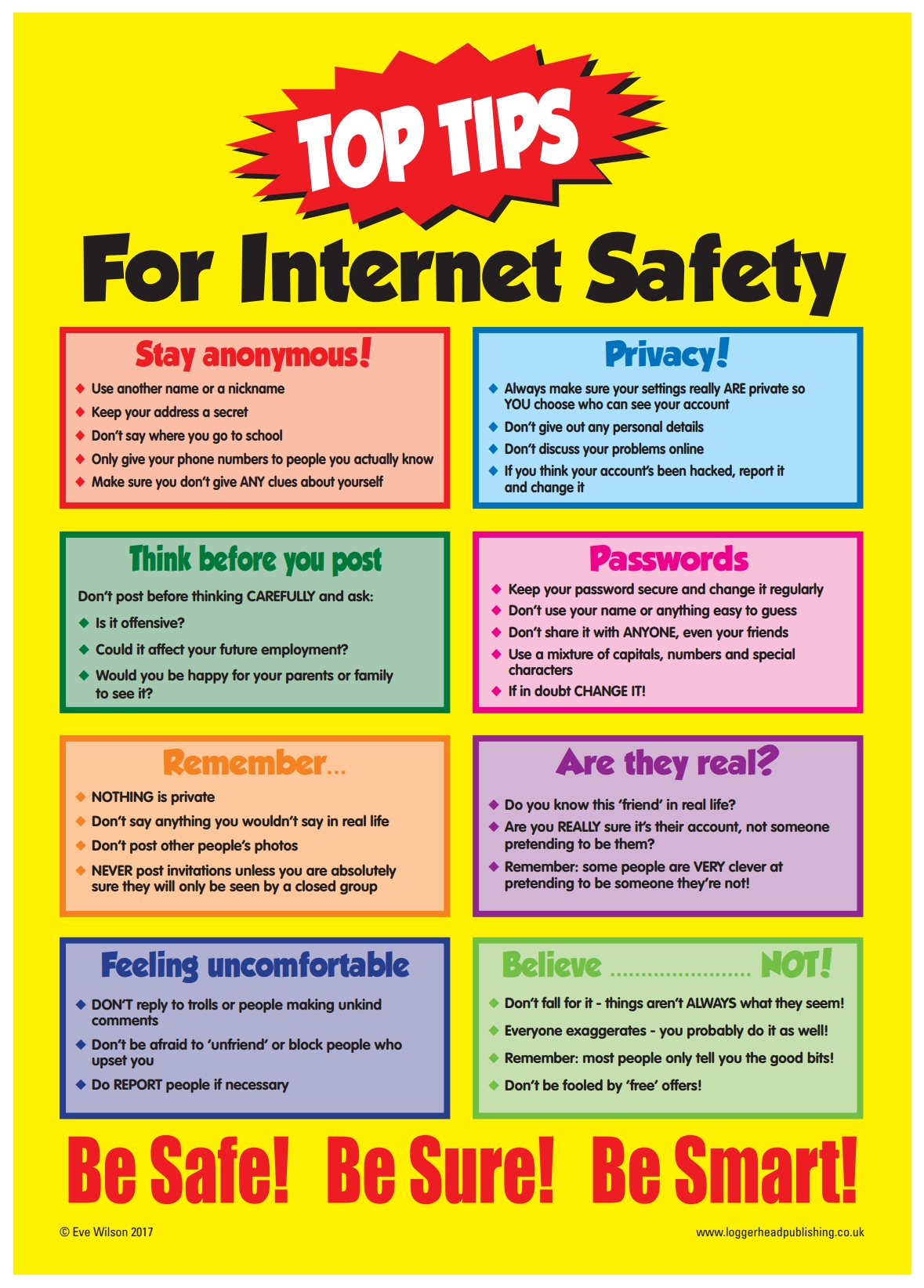
Welcome to our lesson today.
LEARNING OBJECTIVES:
1. Use publisher to complete the brochure on Online Safety and print it.
2. Login to https://purplemash.com/tbs and use the template to create a poster on eSafety.
3. You can also create a poster using Microsoft Word, Publisher or PowerPoint slide.
4. In the last 5 minutes, we will have an educational game on kahoot about internet safety.
Requirements:
- The poster must have an attractive and visible title.
- It must have clear and summarized information about how to be safe online.
- must have graphics or images to support your title. "Remember LESS IS MORE"
ENJOY YOUR COMPUTING LESSON.
MR. WAMURWA
Subscribe to:
Comments (Atom)
-
FOLLOW THESE STEPS TO CREATE A BROCHURE. On the Start button, type Publisher. Click on Built in. Once the Built in is open, type and ...
-
 Dear students, Welcome back. Learning Objectives: 1. Work in a group of three students to plan a class party. 2. Open Excel and enter...
 -
Dear students, Welcome to the lesson on online safety. This page will guide you on how to remain safe while using the internet to research ...
